

How to Design an Invoice in the Wolvox ERP Program?
A3166Oluşturulma: 22.10.2021Güncellenme: 03.09.2026
The way of adding image to field as offer and order is same. Please follow steps in below.
- Admin -> Custom Definitions -> Custom Settings.
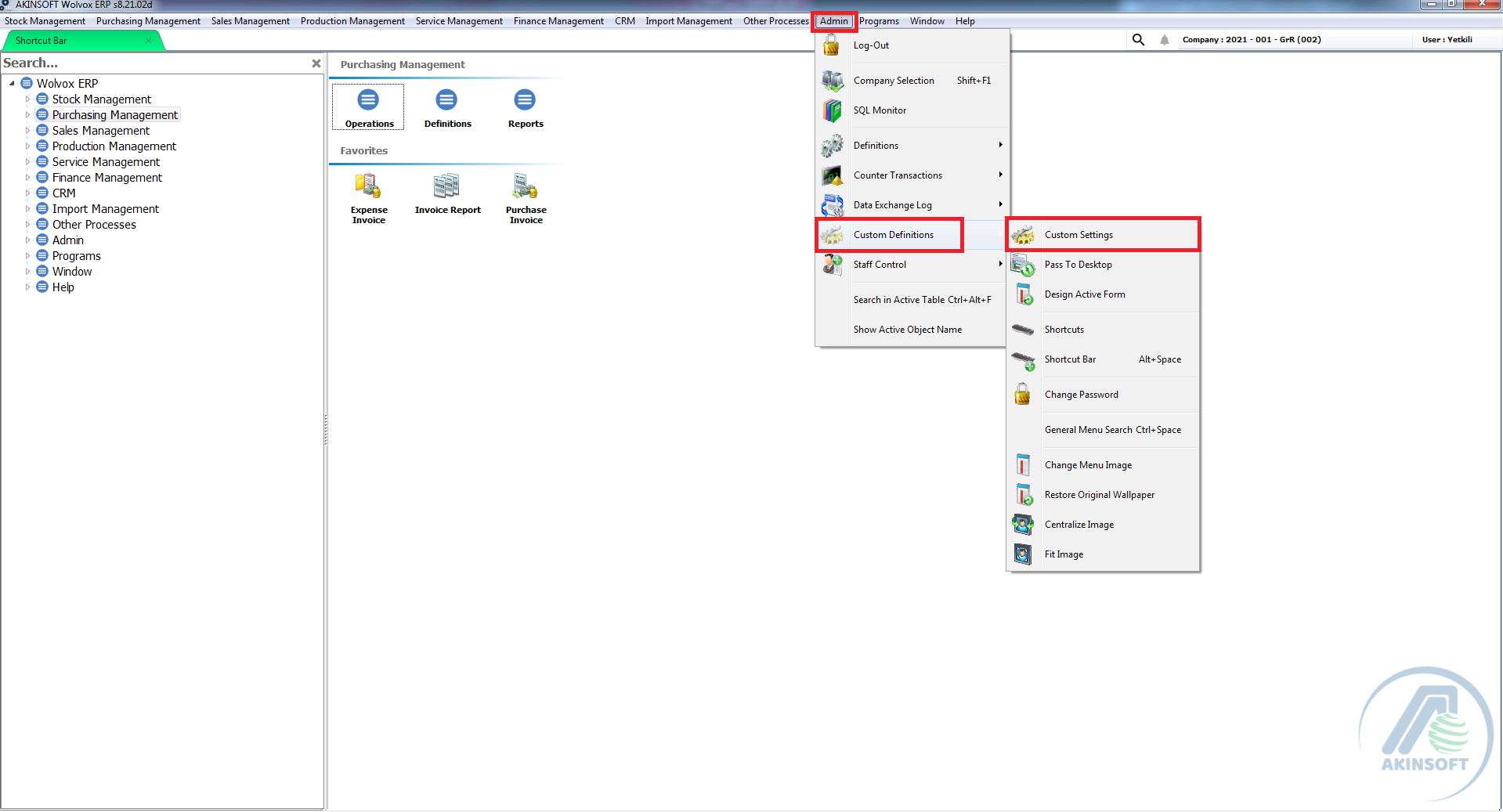
- According to field that you want to add image, you may click Offer or Order settings. Now enable 'Import Stock Image When Printing'.
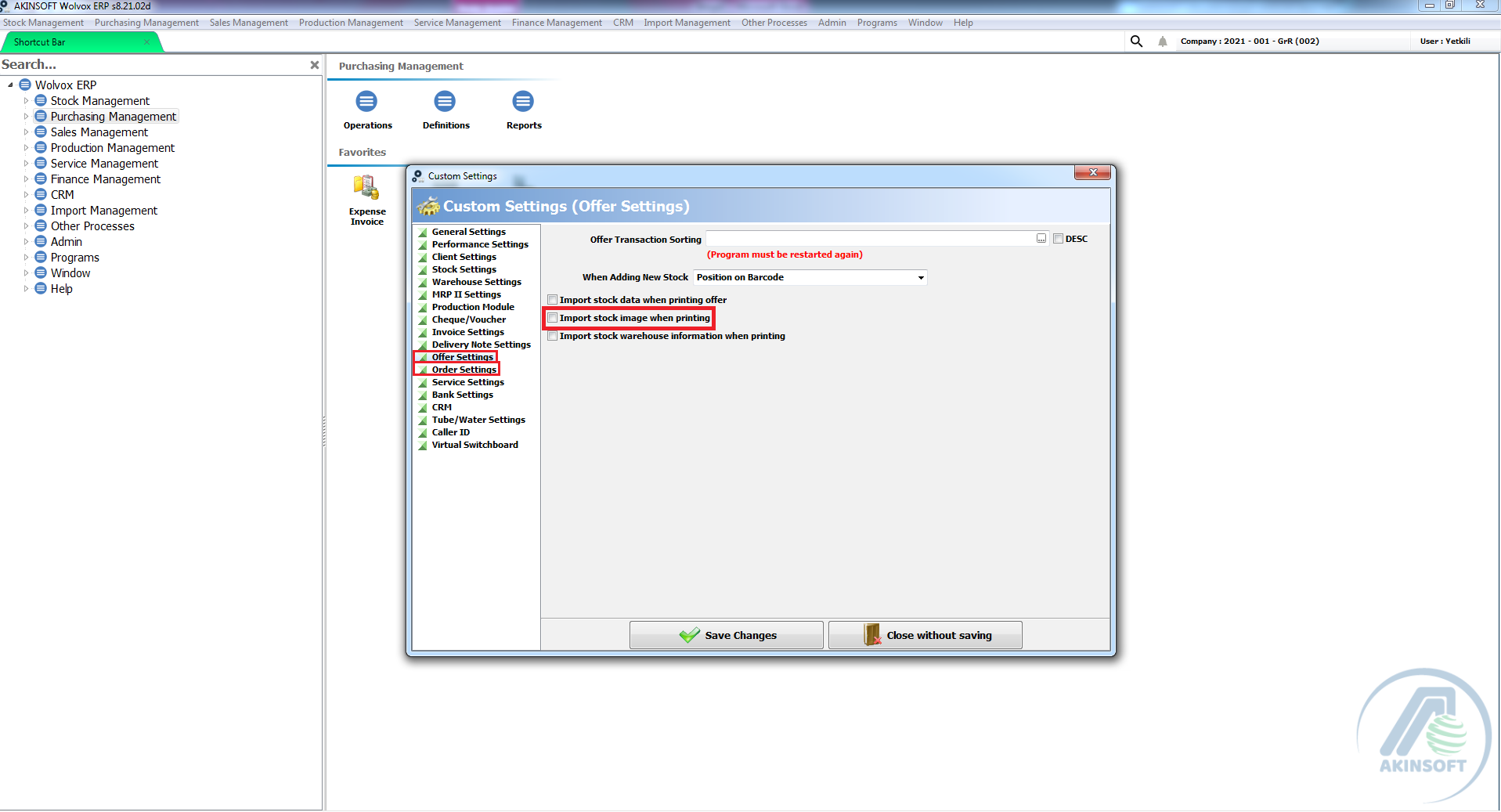
- Then open an order/offer transaction.
- Print -> Design Active Report.
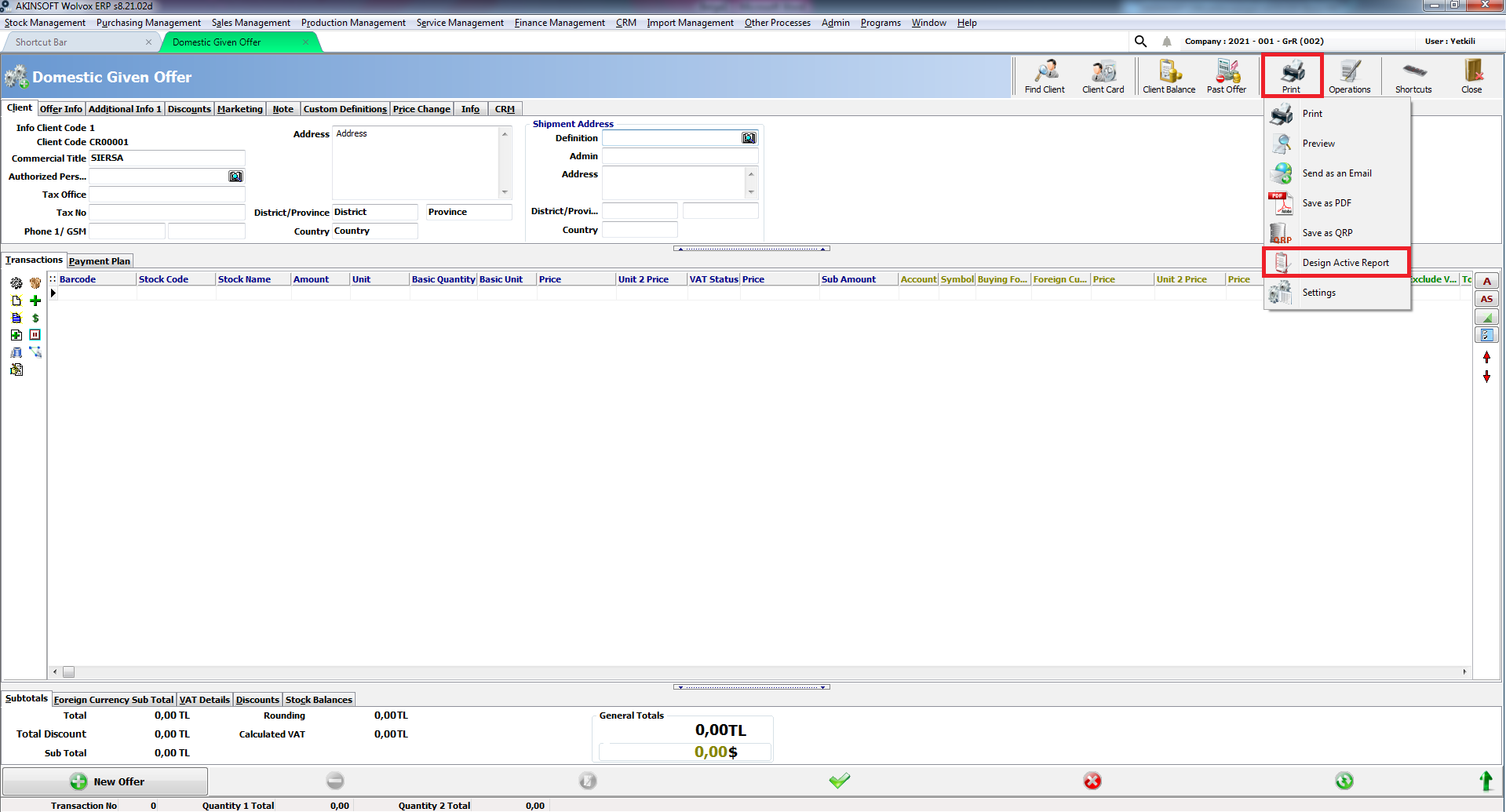
- Now you should add image field to design. Press db image button in top then you will be able to put db image in your design. Find empty place, make a right click then scale it.
Note: Ctrl + Navigation keys allow you to move active elements. LShift+ Navigation keys allow you to scale active elements.
- After you finished your work with design. Now you should select database field where stock images kept. In left of the screen you will see parameters field. Press empty field in front of Table parameter. You will see … button, press this button. ‘Select Offer/Order Reports’ from left side and select ‘Offer/Order Printing Custom Values’ from right side then press ‘OK’.
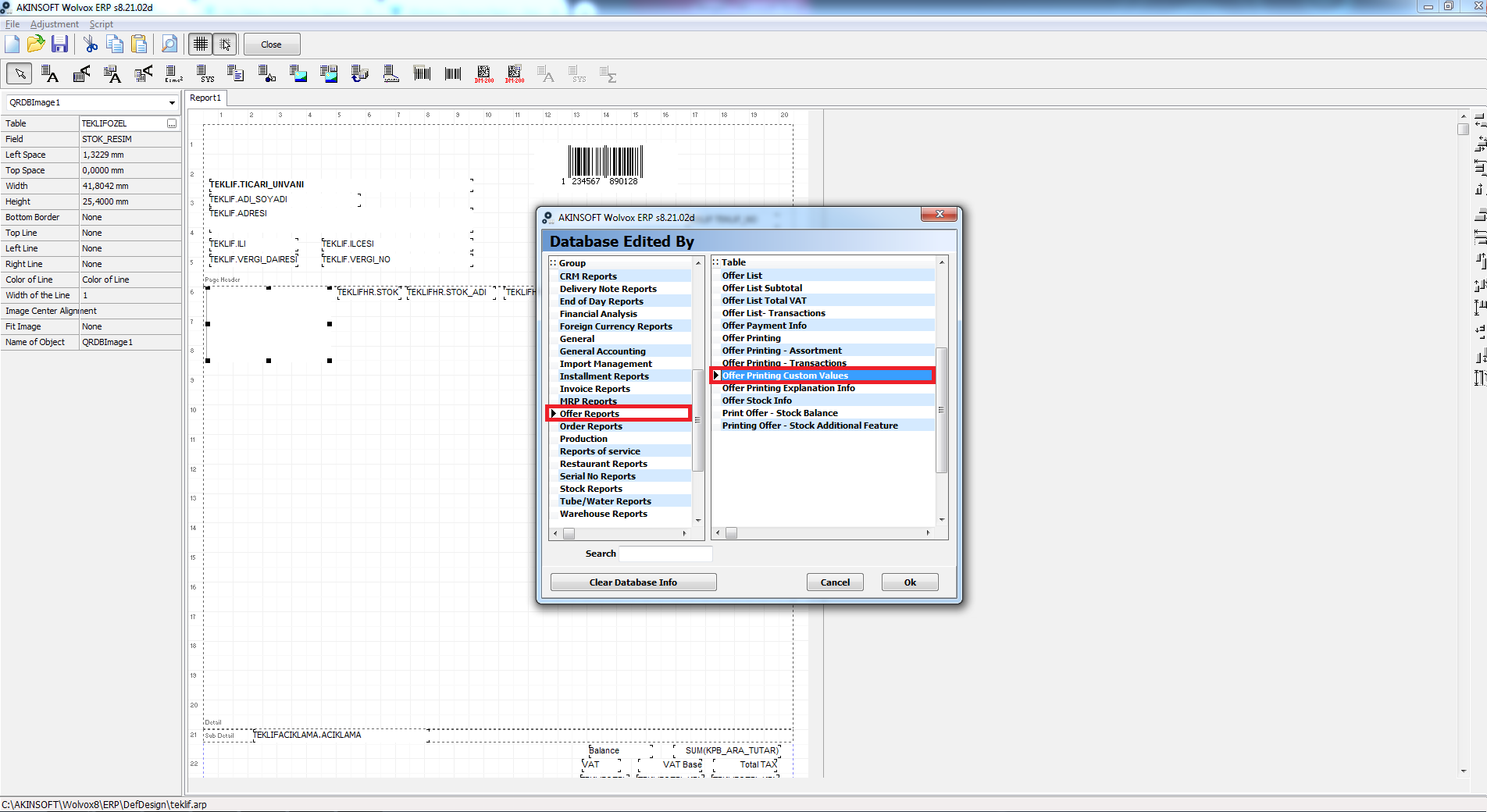
- Press empty field in front of Field parameter. You will see … button, press this button. Now select ‘Stock_Image’ and press ‘OK’.
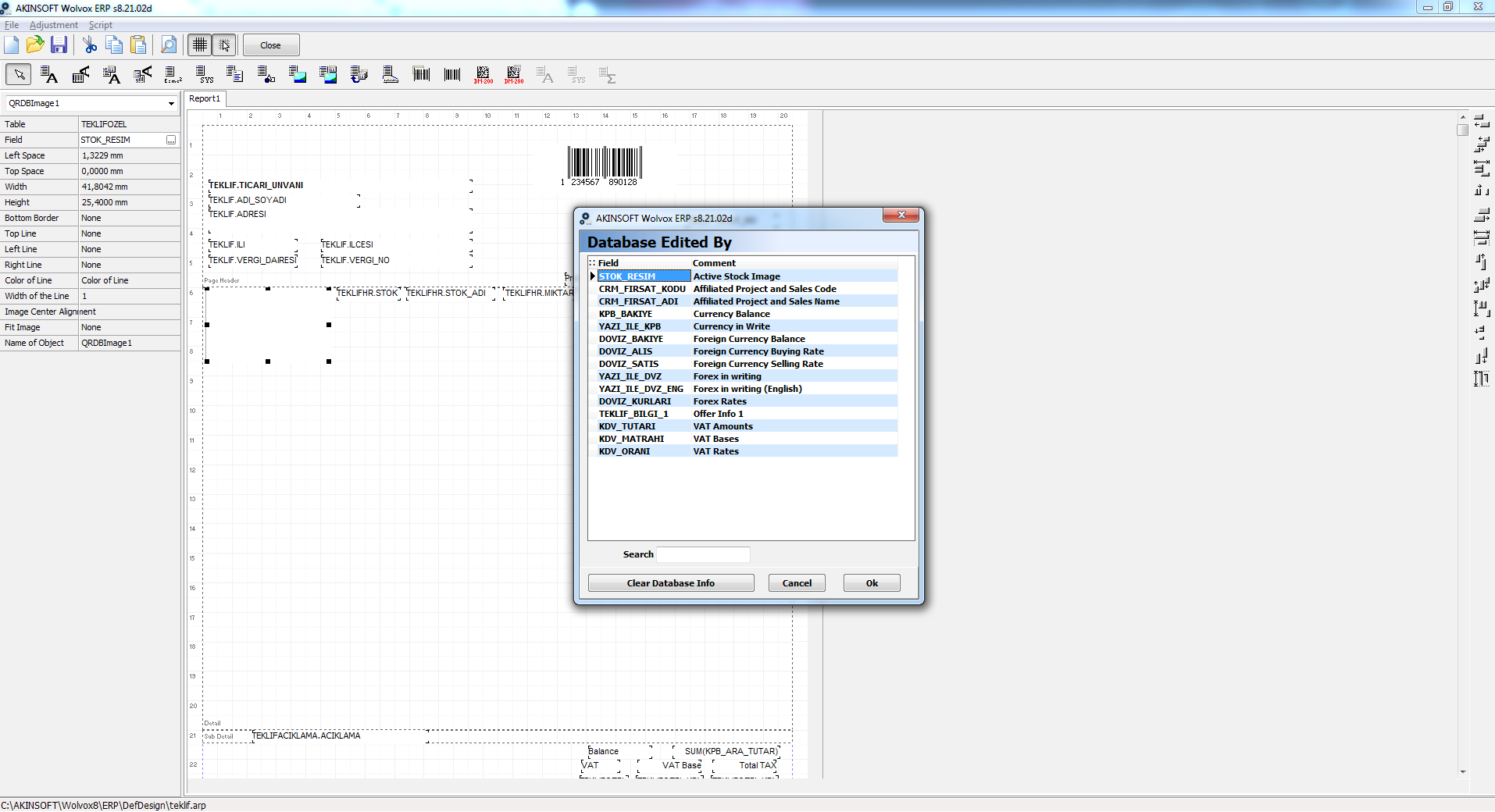
- After you are okay with your design. Press button to save the design.
Kaynak: AKINSOFT Bilgi Bankası (A3166) — orijinal makale
Bu makale yardımcı oldu mu?
Aynı kategoriden diğer makaleler
Print design, Adding SubtotalsA2750In AKINSOFT WOLVOX ERP 8 program, Can I copy the recorded invoice after that changes the details and save again ?A2752In AKINSOFT WOLVOX 8 program, Can I increase or decrease all stock price ?A2753How can I restore the accidentally deleted invoice in Akınsoft Wolvox program?A2754How can I use by activating assortment system in my WOLVOX Pre-Accounting program?A2787
Sorun devam mı ediyor?
AKINSOFT Malatya Ana Bayiniz olarak yerinde ve uzaktan destek veriyoruz.